The Truth About Tiktok Repost Remover Extensions: Fact-Checking Viral Shortcuts
 By Sophia Al-Mansoor
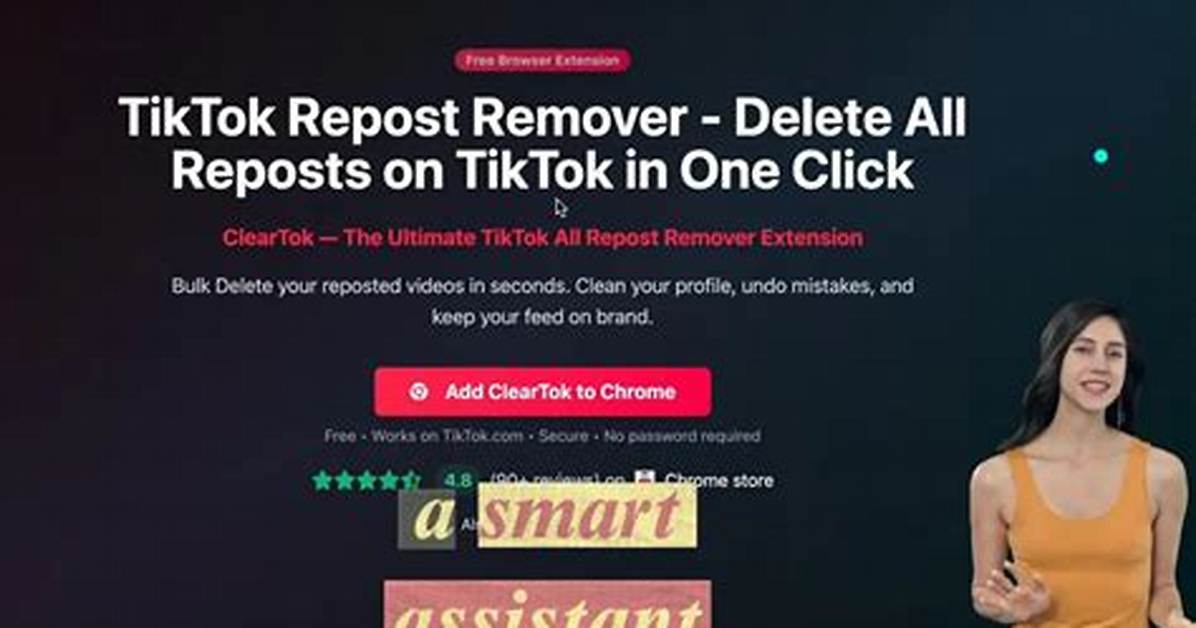
Because unauthorized tools expose your personal data, un-reposting videos requires the native smartphone app. As documented in step-by-step guides by PCMag, clearing out your shared feed remains a manual process.
To manually un-repost a video from your archive:
- Open the TikTok mobile application on iOS or Android.
- Navigate to your Profile icon in the bottom right corner.
- Tap the Repost tab, represented by two looping arrows pointing in a circle.
- Select the specific video you wish to clear from your public feed.
- Tap the Share button (the arrow icon) on the lower right panel.
- Press the yellow Remove Repost button (which replaced the original "Repost" option).
Once tapped, the application immediately updates its database, deleting the record from your public tab and stopping further algorithmic distribution to your contact list.
Performing this task manually for thousands of items is tedious. The best strategy involves dedicating five minutes a day to clear recent content or choosing to ignore legacy reposts entirely, as TikTok's recommendation engine heavily deprioritizes distribution for clips shared more than 60 days prior.
Sophia analyzes international trade, startup ecosystems, retail transformation, and supply chain logistics for modern digital publications.
