Playstation Connection Failed: Is It Sony's Servers or Your Home Internet?
 By Maya Lin-Takahashi
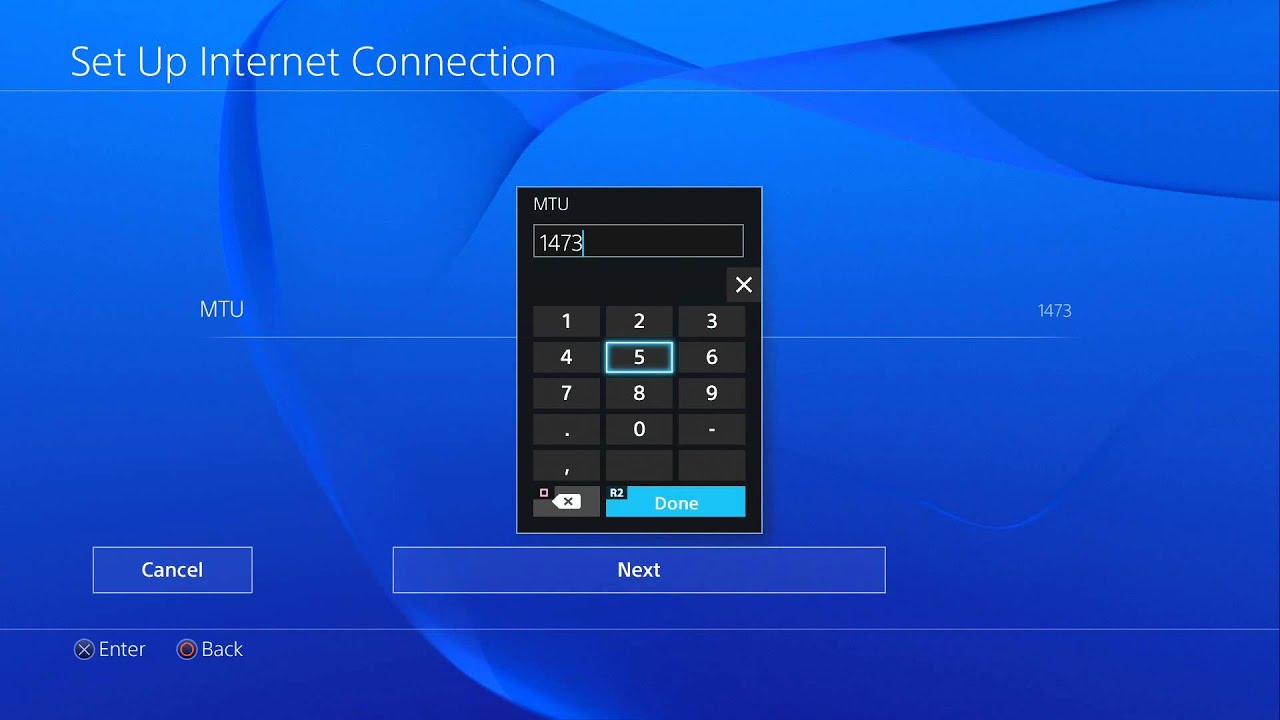
When the official PlayStation Network status shows clear green indicators across all services, the bottleneck sits squarely in your routing equipment. The default Domain Name System (DNS) assigned by your internet service provider often handles gaming lookups poorly, dropping requests during routine traffic surges. Implementing a custom DNS settings configuration bypasses sluggish regional resolution servers entirely.
Navigate to your network settings and switch the DNS configuration from automatic to manual. Assigning primary DNS to 8.8.8.8 and secondary DNS to 8.8.4.4 routes queries through Google’s public resolvers. Alternatively, entering 1.1.1.1 and 1.0.0.1 directs queries through Cloudflare’s privacy-focused relays. Both providers shave vital milliseconds off route negotiations and resolve intermittent lookup failures.
Radio frequency congestion presents another common pitfall. Dual-band routers frequently group 2.4 GHz and 5 GHz channels under a single network name using automatic band steering. PlayStation consoles often drop to the 2.4 GHz band during heavy background interference, resulting in packet jitter and dropped connections. Separate the bands manually in your router admin panel. Lock the console strictly to the 5 GHz Wi-Fi frequency band for lower latency, or bypass wireless airwaves entirely with a direct LAN cable setup. Category 6 ethernet cables deliver uncompromised throughput, zero packet loss from wall occlusion, and steady connectivity immune to local wireless noise.
Maya is a hardware enthusiast who tests and reviews smart home devices, smartphones, wearables, and audio gear. She focuses on practical consumer value and build quality.
