Meta Updates Account Center Navigation: How to Deactivate Instagram Professional Accounts Today
 By Elena Rostova
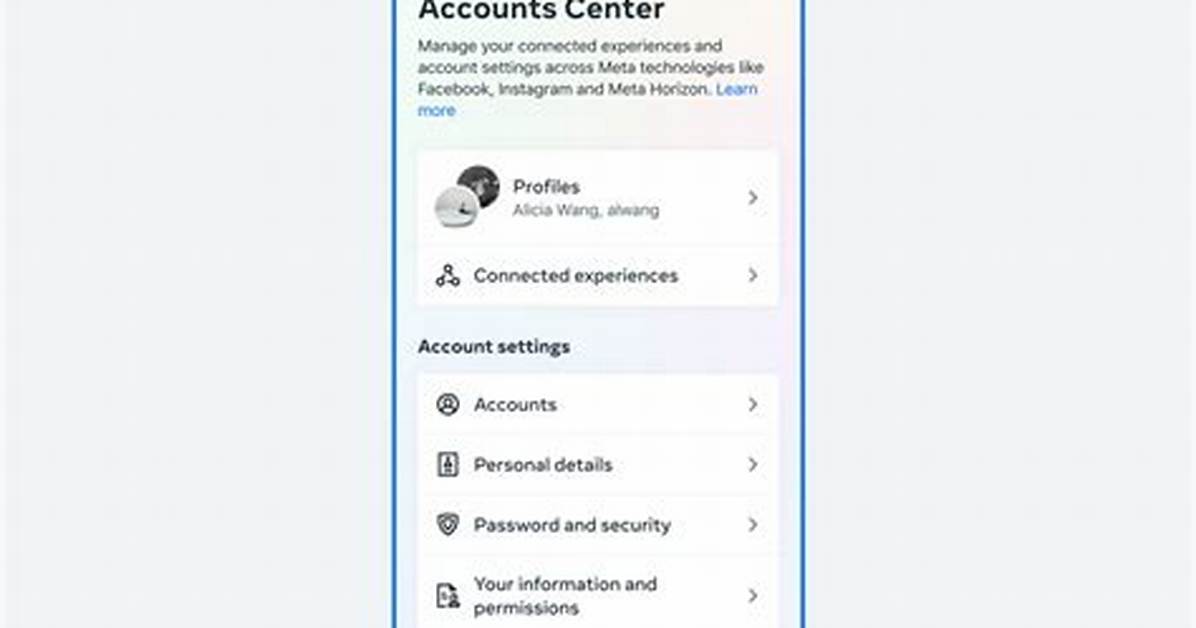
The deactivation steps require following an exact pathway through the mobile app or a desktop browser. Follow these instructions directly:
Open the Instagram app and tap your profile picture in the bottom right corner. Select the three horizontal lines in the top right to open "Settings and privacy." At the top of this screen, tap Accounts Center.
Inside Accounts Center, scroll down to the "Account settings" section and select Personal details. Tap Account ownership and control, then tap Deactivation or deletion. You will see a list of linked profiles; select the Instagram professional profile you want to pause.
Choose Deactivate account (selected by default) and tap Continue. The app will prompt you to enter your password to confirm identity. Select a reason from the dropdown menu, review the operational warnings regarding active business assets, and confirm by tapping Deactivate account.
Once finalized, your grid, comments, and creator identity become invisible to other users immediately. Your data remains on Meta servers awaiting a subsequent login.
Elena Rostova holds a Master's degree in Public Health Journalism. She covers groundbreaking medical research, holistic wellness trends, mental health awareness, and nutritional science.
