Hydron Overwatch Crosshair Decoded: Visual Proof and in-Game Settings Breakdown
 By Alexander Ross
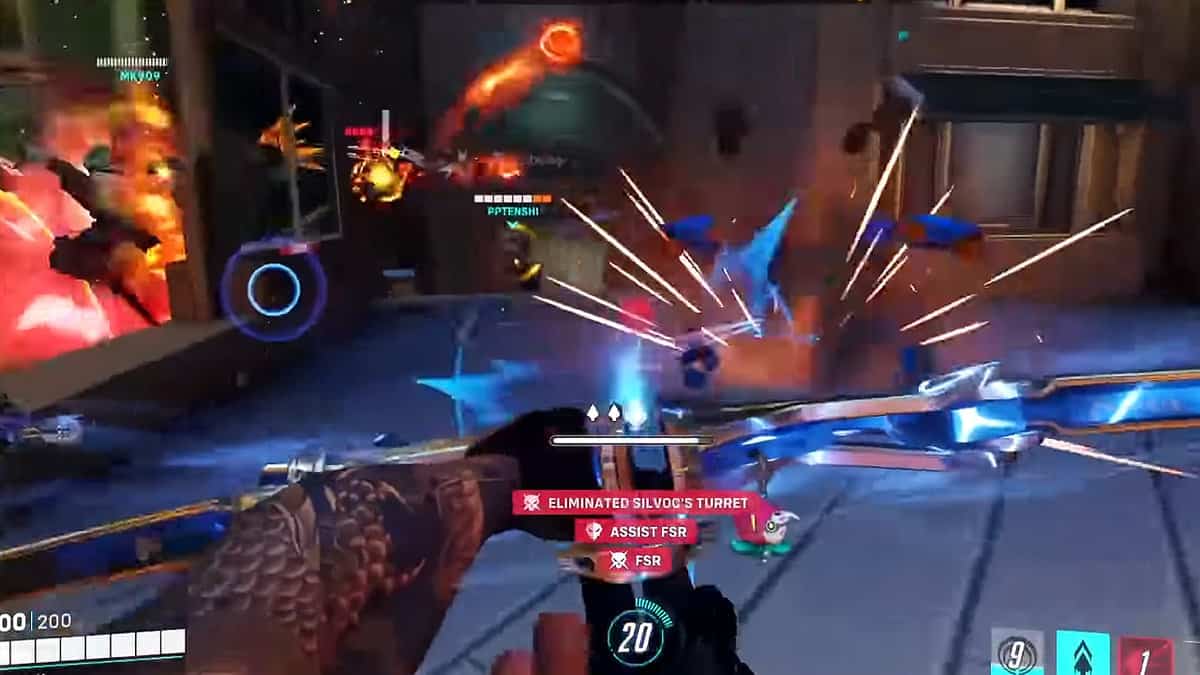
Replicating Hydron's exact configuration requires navigating Overwatch 2's advanced reticle slider menu under Options, then Controls, and selecting DPS hitscan heroes individually or globally. Verified stream captures and tournament interface screenshots confirm his primary configuration:
Type: Crosshairs
Show Accuracy: Off
Color: Green or Cyan (depending on tournament stage lighting and map set)
Thickness: 1
Crosshair Length: 7, 8
Center Gap: 6, 7
Opacity: 100%
Outline Opacity: 100% (or 50%, 80% depending on ambient map brightness)
Outline Thickness: 1
Outline Shift: 1
Dot Size: 2 (often reduced to 0 or toggled off entirely)
Dot Opacity: 0% (when relying purely on the four crosshair lines)
The most vital toggle in this entire layout is the Show Accuracy toggle. When turned on, weapons like Soldier: 76's pulse rifle or Cassidy's Peacekeeper expand the crosshair lines outward during fire sequences to indicate weapon spread. Professional hitscan players universally deactivate this feature. Dynamic expansion creates visual noise that pulls player focus away from target movement. Disabling bloom ensures the crosshair remains static, giving the player consistent reference geometry for click-timing and micro-flicks.
Setting Crosshair thickness to 1 guarantees minimal screen space coverage. Many novice players use thickness settings of 2 or 3, assuming a heavier line improves visual tracking. In practice, thick lines hide opposing strafe animations. Hydron's setting keeps the outer lines narrow, letting the 100% Crosshair opacity maintain solid color definition against dark and bright backgrounds alike.
Alexander Ross has covered the video game industry for a decade, writing deep dives on game design, esports tournaments, VR developments, and gaming culture.
